Session 1
Introduction
In this hands-on lab, we will dive into the exciting world of ROS2, exploring its project structure and core components. You will learn how to build a ROS2 project from scratch, focusing on key elements such as nodes, topics, publishers, subscribers, services, and interfaces.
Throughout this session, we will guide you step-by-step to ensure you understand how these components work together. You will also discover essential debugging tools that will help you troubleshoot and refine your projects.
Feel free to follow our guidelines closely and complete the tasks as they come up. Remember, if you ever feel stuck or have questions about any concepts, do not hesitate to reach out for help. We are here to support you on this journey!
Feedback Form
A feedback form has been designed for each session to gather insights into your perception and expectations about the course. Your responses help us understand your experience and make improvements where needed. We would be grateful if you could take a few minutes to complete them.
Help Us Improve
We would love to hear from you! Please complete this form to share your thoughts and help us improve. Your feedback is greatly appreciated!
ROS2 Installation
Up until now, we have mentioned that ROS2 is pre-installed in the Docker environment. Now it is time to confirm that it is actually there. To do this, we will use some demo packages that come with the ROS2 installation. Follow these steps to check it out:
Open Terminator and split the window into two terminals
In one of the terminals, run the following command:
ros2 run demo_nodes_cpp talker
In the second terminal, run this command:
ros2 run demo_nodes_py listener
What you should see is that the C++ node publishes a message to a topic, while the Python node listens to it.
Warning
Do not panic if that did not make much sense right now. We will cover these concepts during today’s session. No stress!
Important
You have successfully verified that ROS2 is installed and seen how programs in different languages (Python and C++) communicate through ROS2, showing its language-agnostic feature.
For the rest of the course, we will focus on Python.
However, that is not the only thing that has been pre-installed for your comfort. In fact, a few lines have also been added to a configuration file called .bashrc. This file is a script that executes every time you open a new terminal, in order to configure the terminal’s local environment. Let’s take a closer look:
Open the .bashrc file
nano ~/.bashrc
Scroll to the bottom of the script using
▼, here you should see the following lines:
source /opt/ros/humble/setup.bash
source /usr/share/colcon_argcomplete/hook/colcon-argcomplete.bash
Comment the source /opt/ros/humble/setup.bash and save the file
Close the previous terminals and open a new one
Run the same talker node as before
ros2 run demo_nodes_cpp talker
Question
What do you observe?
Now run the source command in the terminal and run the talker node again
source /opt/ros/humble/setup.bash
ros2 run demo_nodes_cpp talker
Question
What do you conclude? What does the source command do?
Once you have understood the meaning of this command, go back to .bashrc file, uncomment the source command and save the file.
Question
What is the benefit of having the source command in .bashrc?
Tip
If you have been copying and pasting commands into the terminal, that is great! But remember the tab completion tricks we covered in the preparatory work. These also work with ROS2 commands. Give it a try by typing the following in your terminal:
ros2 run de
Then, double-tap tab. You should see the available options. Now type m and press tab again. The command will autocomplete! Use these tricks to type faster.
Previously, we also mentioned a second line that was added to your convenience. We will see what does the source /usr/share/colcon_argcomplete/hook/colcon-argcomplete.bash command do later in the course when the time is right.
ROS2 Project Build
Now that you have verified ROS2 is installed on your desktop, let’s create a ROS2 project! The first step is to set up a workspace, which is essentially a directory where you will store your project. Within this directory, you will need to create a source folder where your application development will take place. Your workspace will also contain other folders, which we will explore later.
Let’s create the workspace and its source folder in your home directory:
cd ~
mkdir -p ros2_basics_ws/src
Next, verify that the directory was created successfully and that it contains the source folder.
As mentioned earlier, all your applications will be developed inside the source folder. Within this folder, you will add packages related to your project. Packages are the fundamental building blocks in ROS2 that help structure your project. They organize and group related functionalities and are designed to be modular and reusable, allowing you to use them in other projects.
Packages can contain a variety of elements, including nodes, libraries, configuration files, launch files, interfaces, documentation, and more. While this might seem overwhelming at first, we will clarify these concepts during the session. Let’s dive in and create our first Python package:
cd ~/ros2_basics_ws/src/
ros2 pkg create ros2_basics_pkg --build-type ament_python
You can now open the source folder in Sublime Text and take a look at what was generated when you created the package:
subl .
Let’s go over the essential files you will need to pay attention to as you start working with ROS2:
setup.py: This file is where you will declare your executable ROS2 programs
package.xml: This file defines the dependencies for your package
ros2_basics_pkg: This folder will contain your package’s code and resources
Again, these concepts will become much clearer when we will create our first program.
Note
Our work environment already includes all necessary dependencies. To avoid adding unnecessary complexities, we will not modify the package.xml file in this class. However, remember that this file is crucial for publishing your package, as it lists the dependencies needed for others to use it effectively.
The final topic for this section is how to build a project. ROS2 provides a build tool called colcon, which is used to compile packages within a ROS2 workspace. It manages dependencies and ensures everything is properly linked. Let’s go ahead and build your first project:
cd ~/ros2_basics_ws/
colcon build
Important
Make sure you are in the workspace directory before running the build command!
Once the build is complete, list the contents of your workspace. If the build worked successfully, you should see four folders: /src, /build, /log, and /install. You have already created the source folder yourself, but the other three are generated during the build process:
/log: Contains the logs of the compilation process
/build: Stores intermediate files, tests, and temporary data
/install: This is the most important folder, as it holds the compiled files necessary for execution
There are also additional useful commands to build your project:
To build a specific package from your workspace:
colcon build --packages-select <pkg_name>
To create symbolic links to your files:
colcon build --symlink-install
This requires a bit more explanation. Normally, when you run colcon build, it takes all your files from /src, build them into /build, and install them into /install. ROS2 only recognizes the files in the /install directory, so any changes you make in /src will not be applied until you rebuild the project.
However, using the colcon build –symlink-install command creates symbolic links to the files in the /src folder. This allows ROS2 to track changes in your files automatically, so you do not have to rebuild the project each time.
Warning
While this command is convenient, we recommend not using it initially so you can get familiar with the building process.
At this point, we can also explain the second line that was added to your .bashrc file. The source /usr/share/colcon_argcomplete/hook/colcon-argcomplete.bash command enables tab completion for colcon commands. Try it yourself! Comment or uncomment this line in your .bashrc file, then try typing a colcon command in you terminal with the tab key to see the difference.
First Node
It is finally time to start working with your first ROS2 program! In this chapter you will create your first node. A node is an independent program that handles a specific task in a ROS2 system. It is the main brick of the ROS2 environment. In a concrete project you will have multiple nodes that can communicate through topics or services (let’s keep this for later) in order to achieve the desired tasks. Enough talking, let’s go to work:
Move into the development package that we created before
cd ~/ros2_basics_ws/src/ros2_basics_pkg/ros2_basics_pkg
Create a empty file
touch minimal_node.py
Make it executable
chmod +x minimal_node.py
Add the following content inside your file
import rclpy
from rclpy.node import Node

class MinimalNode(Node):
    def __init__(self):
        super().__init__("node_name")
        self.get_logger().info("Minimal Node has been started")

def main(args=None):
    rclpy.init(args=args)
    minimal_node = MinimalNode()
    rclpy.spin(minimal_node)
    minimal_node.destroy_node()
    rclpy.shutdown()

if __name__ == "__main__":
    main()
Let’s break down the key components of this minimal ROS2 node:
Imports
rclpy: ROS2 core Python library
Node: Base class to define a ROS2 node
Class Definition
MinimalNodeinherits fromNode, enabling access to ROS2 functionalitiesWritten in Object-Oriented Programming (OOP) style
Constructor (__init__)
Initializes the node with
super().__init__("node_name"), ensures that the node is correctly registered in the ROS2 system, and assigns it a nameLogs a message when the node starts
Main Function
rclpy.init(): Starts ROS2 communication
rclpy.spin(minimal_node): You will find out for yourself soon!
destroy_node()andrclpy.shutdown(): Once the node is no longer required, it is properly destroyed and ROS2 communications are interrupted
As mentionned in the previous section, we also need to declare the file as a ROS2 executable program in setup.py.
This is done by adding an entry point as follow:
entry_points={
    'console_scripts': [
        "first_node = ros2_basics_pkg.minimal_node:main"
    ],
},
Important
The general structure for the entrypoints is as follow:
entry_points={
    'console_scripts': [
        "<executable_name_1> = <pkg_name>.<file_name_1>:main",
        "<executable_name_2> = <pkg_name>.<file_name_2>:main"
    ],
},
Be sure to understand the difference between executable_name, file_name and node_name. When you will run a program from your terminal you will use the executable_name so be sure to know which one it is. Moreover, we would like to point out the
,between the lines of the entry_points when your package contains multiple programs.
Build the project and run the node
Now you are finally ready to build and run your first node!
Open a terminal, navigate to the workspace and build your project
Try to run the node with the following command:
ros2 run ros2_basics_pkg first_nodeNote
The general structure to run a ROS2 node is:
ros2 run <pkg_name> <executable_name>Error
At this point, you might encounter an unexpected message in your terminal. Can you guess what could be the problem? Ask for help and discuss with your assistant of the potential issue and how to solve it!
After having successfully run the node, you can kill it with
Ctrl+C
Comment the spin function
Go back to minimal_node.py and comment rclpy.spin(minimal_node). Save the changes, build the project and run the program again.
Question
What difference do you observe?
Communication Overview
One of the key features of ROS2 is its distributed computing architecture, designed to simplify complex robotic systems. At its core is a graph-like structure where nodes, which are individual software processes handling specific tasks, communicate with each other using topics and services. This communication is built on message-passing mechanisms that allows data exchange. Each method serves a specific purpose:
Topics: Enable publish-subscribe messaging, allowing nodes to publish data that others can subscribe to. Ideal for continuous data flows, such as sensor readings or real-time monitoring of robot status.
Services: Provide a request-response mechanism for discrete tasks, where one node requests an action and waits for a response from another node. Useful for operations such as checking a status or sending a command.

Topics Overview
Let’s move forward in our journey and add communication in this project. Let’s start by taking a closer look at the talker-listener example:
Open Terminator and split the window into three terminals
In one of the terminals, run the following command:
ros2 run demo_nodes_cpp talker
In another one, run this command:
ros2 run demo_nodes_py listener
In the last terminal, run simply:
rqt_graph
As you can see, rqt_graph is a powerful tool in the ROS2 ecosystem that allows you to visualize the interactions between nodes. In our example, you can see that the talker node publishes messages to the chatter topic. Meanwhile, the listener node subscribes to this topic, enabling it to receive those messages.
Now that you have had a taste of what communication can look like in ROS2, let’s delve a little into the theory behind it.
In the simple talker-listener communication example, you saw the interaction between two key components: nodes and a topic.
A topic is a communication channel used by nodes to exchange messages.
A node acting as a publisher can send data to a topic.
A node acting as a subscriber can receive data from a topic.
The data exchanged through a topic is called a message, which follows a defined data structure.

Key aspects
A topic is defined by a name and a message type.
Topics are used for continuous, unidirectional communication.
A topic can have multiple publishers and subscribers.
ROS2 communication is anonymous: publishers and subscribers exchange data via topics without knowing the existence of each other.
Now that you have a better understanding of how topic communication works in ROS2, let’s create our own publishers and subscribers:
Create two new Python files in the ros2_basics_pkg folder: publisher.py and subscriber.py
Make both files executable
Add the following code for the publisher
import rclpy
from rclpy.node import Node

from std_msgs.msg import String

class MinimalPublisher(Node):

    def __init__(self):
        super().__init__('minimal_publisher')
        self.publisher_ = self.create_publisher(String, 'topic', 10)
        timer_period = 0.5  # seconds
        self.timer = self.create_timer(timer_period, self.timer_callback)
        self.i = 0

    def timer_callback(self):
        msg = String()
        msg.data = 'Hello World: %d' % self.i
        self.publisher_.publish(msg)
        self.get_logger().info('Publishing: "%s"' % msg.data)
        self.i += 1

def main(args=None):
    rclpy.init(args=args)
    minimal_publisher = MinimalPublisher()
    rclpy.spin(minimal_publisher)
    minimal_publisher.destroy_node()
    rclpy.shutdown()

if __name__ == '__main__':
    main()
Question
What are the essential elements of a publisher?
Run the publisher node
Update the setup.py file, then build the project and run the node. If you have any questions about these steps, please refer to the previous section or ask for assistance.
Examine the system
Open a new terminal and explore various ROS2 Command Line Interface (CLI) tools to inspect the system. Additionally, use rqt_graph to visualize what is happening.
CLI |
Command |
|---|---|
List all nodes |
|
Get details on a node |
|
List all topics |
|
List all topics + message type |
|
Display messages published to a topic |
|
After inspection, kill the node by pressing Ctrl+C.
Note
These tools are essential for debugging your system, allowing you to check node status, view active topics, and analyze message flow. They also help identify message types and understand node interactions, making it easier to spot issues and ensure your ROS2 applications run smoothly.
We have finished with the publisher node for now, let’s move on to the subscriber node:
Add the following code for the subscriber
import rclpy
from rclpy.node import Node

from std_msgs.msg import String

class MinimalSubscriber(Node):
    def __init__(self):
        super().__init__('minimal_subscriber')
        self.subscription = self.create_subscription(String,'topic',
                                                     self.listener_callback, 10)
        self.subscription  # prevent unused variable warning

    def listener_callback(self, msg):
        self.get_logger().info('I heard: "%s"' % msg.data)

def main(args=None):
    rclpy.init(args=args)
    minimal_subscriber = MinimalSubscriber()
    rclpy.spin(minimal_subscriber)
    minimal_subscriber.destroy_node()
    rclpy.shutdown()

if __name__ == '__main__':
    main()
Question
What are the essential elements of a subscriber?
Run the publisher node
Update the setup.py file, then build the project and run the node.
Examine the system
Open a new terminal and explore various ROS2 Command Line Interface (CLI) tools to inspect the system. Additionally, use rqt_graph to visualize what is happening.
CLI |
Command |
|---|---|
List all nodes |
|
Get details on a node |
|
List all topics |
|
List all topics + message type |
|
Publish a message to a topic |
|
After inspection, kill the node by pressing Ctrl+C.
Run the publisher and subscriber simultaneously
At this stage, you can run both the publisher and subscriber at the same time. Utilize the commands introduced earlier to inspect the nodes and topics. Additionally, use rqt_graph to visualize the communication.
Manage multiple publishers
Keep the publisher and subscriber running, then launch a second publisher using the usual command.
Question
What happens when we run two publishers with the same node name?
Tip
You can use ros2 node list or ros2 node info to help you answer this question.
In some scenarios, it may be useful to run the same executable with different node names. ROS2 allows this through a feature called remapping. Here is the syntax for the run command:
ros2 run <pkg_name> <executable_name> --ros-args -r __node:=new_node_name
Task
Launch two publishers and two subscribers, each with unique names. Verify that you get the expected results using the CLI commands and rqt_graph.
Remap topic at runtime
Just like nodes, topics can be renamed at runtime using remapping. You can achieve this with the following command:
ros2 run <pkg_name> <executable_name> --ros-args -r default_topic_name:=new_topic_name
Task
Experiment with different publishers and subscribers by using remapping to create a graph similar to the one shown below.

In the rqt_graph interface, ensure you select Nodes/Topics (all) rather than Nodes only to obtain the same graph representation.
Exercise 1
Now it is time to put your skills to the test! Apply what you have learned so far to complete the following exercise.
Heat Index Monitoring System
Create a ROS2 system where two different sensors (simulated as publishers) publish temperature and humidity data to separate topics. A third node (subscriber) listens to both topics, combines the data, and logs an alert if the heat index (a combination of temperature and humidity) exceeds a certain threshold.
Steps
Create two publishers
One publisher will simulate a temperature sensor and publish random temperature values in Celsius (between 27°C and 43°C) on the temperature topic
The second publisher will simulate a humidity sensor and publish random humidity values (between 40% and 100%) on the humidity topic
These values should be published at regular intervals (every 5 seconds)
Create a subscriber
This node subscribes to both temperature and humidity topics
It calculates the heat index using the following formula:
heat_index = -42.379 + 2.04901523 * T + 10.14333127 * H - 0.22475541 * T * H \
            - 6.83783e-3 * T ** 2 - 5.481717e-2 * H ** 2 \
            + 1.22874e-3 * T ** 2 * H + 8.5282e-4 * T * H ** 2 - 1.99e-6 * T ** 2 * H ** 2
where T is the temperature in Fahrenheit and H is the humidity as a percentage
It logs a warning if the heat index exceeds a threshold (125°F)
Hints
Consider developing your nodes in a new package (optional)
Use the numpy.random library to generate random integers. To avoid potential type-related errors, it is recommended to cast the result to an int:
import numpy.random as np_random

random_value = int(np_random.randint(min, max+1))
Utilize the UInt8 from std_msgs as the message type for your topics
The final result should look like this in rqt_graph:

Parameters Overview - Optional
In the Heat Index Monitoring System, you implemented a program that calculates the heat index using data from temperature and humidity sensors. While this solution works well for a single setup, what happens when we want to extend or modify it? For instance, imagine adding a second temperature sensor with a different publish frequency.
Without parameters, these changes would require duplicating or modifying the existing nodes, leading to unnecessary complexity.
ROS2 parameters provide a powerful way to handle such scenarios. Parameters are configurable values that allow nodes to adapt to varying requirements without altering their code. For example, you can specify a sensor’s publish frequency directly from the command line.
To summarize, ROS2 parameters enable:
Customization: Define robot-specific configurations (e.g. sensor settings)
Flexibility: Adjust node behavior without modifying or rebuilding the code
Efficiency: Reuse the same node with different parameter values
Let’s see how parameters work in practice by modifying the first publisher node created in this session. We will define the publish frequency as a parameter, allowing us to change its value directly when running the node from the terminal.
Open the file publisher.py
Modify the publisher
Replace the contents of publisher.py with the following code:
import rclpy
from rclpy.node import Node

from std_msgs.msg import String

class MinimalPublisher(Node):

    def __init__(self):
        super().__init__('minimal_publisher')
        self.publisher_ = self.create_publisher(String, 'topic', 10)
        self.declare_parameter("publish_frequency", 1.0)
        self.publish_frequency_ = self.get_parameter("publish_frequency").value
        self.timer = self.create_timer(1.0 / self.publish_frequency_, self.timer_callback)
        self.i = 0

    def timer_callback(self):
        msg = String()
        msg.data = 'Hello World: %d' % self.i
        self.publisher_.publish(msg)
        self.get_logger().info('Publishing: "%s"' % msg.data)
        self.i += 1

def main(args=None):
    rclpy.init(args=args)
    minimal_publisher = MinimalPublisher()
    rclpy.spin(minimal_publisher)
    minimal_publisher.destroy_node()
    rclpy.shutdown()

if __name__ == '__main__':
    main()
Question
What are the essential steps involved in working with a parameter?
Build the package
Test the publisher with different frequencies
Run the node and set the publish frequency using the following command:
ros2 run ros2_basics_pkg publisher_node --ros-args -p publish_frequency:=4.0
Question
What happens if no parameter value is provided during execution? Why?
Tip
You can verify the frequency at which messages are published using the following command: ros2 topic hz <topic_name>.
Services Overview
Topics are a fundamental communication tool, but they are not the only option available. ROS2 also provides us with services, which offer a different way to handle communication between nodes. Let’s dive into this concept with an example:
Run the add_two_ints_server from the demo_nodes_py package
ros2 run demo_nodes_py add_two_ints_server
Inspect the system with CLI commands
Use the following commands to see what is running, pay special attention to /add_two_ints.
CLI |
Command |
|---|---|
List all nodes |
|
Get details on a node |
|
List all services |
|
List all services + service type |
|
Get details on a service type |
|
Note
We cannot visualize services with rqt_graph.
Call the service from the terminal
In our example, we can execute the last command listed in the above table as follows:
ros2 interface show example_interfaces/srv/AddTwoInts
In the terminal, you should see the following:
int64 a
int64 b
---
int64 sum
As the name suggests, the add_two_ints_server node is a server that takes two integers (a and b) as input and returns their sum (sum). We can call this service with the following command:
ros2 service call /add_two_ints example_interfaces/srv/AddTwoInts "{'a': 2, 'b': 5}"
If you observe the terminal, you will see that the server has processed the incoming request and returned a response with the sum (2 + 5 = 7). In this example, we acted as a client to the service by sending a request and receiving a response from the server.
Feeling lost? That is okay! We are here to guide you through the theory behind services in just a moment.
In the simple add_two_ints example, you saw the interaction between two key components: nodes and a service.
A service is request-response communication between nodes (client-server interaction).
A node acting as a server receives a request from a service, processes it and sends back a response.
A node acting as a client send a request to a service and gets an answer back.
The data exchanged through a service is structured into two parts: a request and a response, each with its own specific data structure.
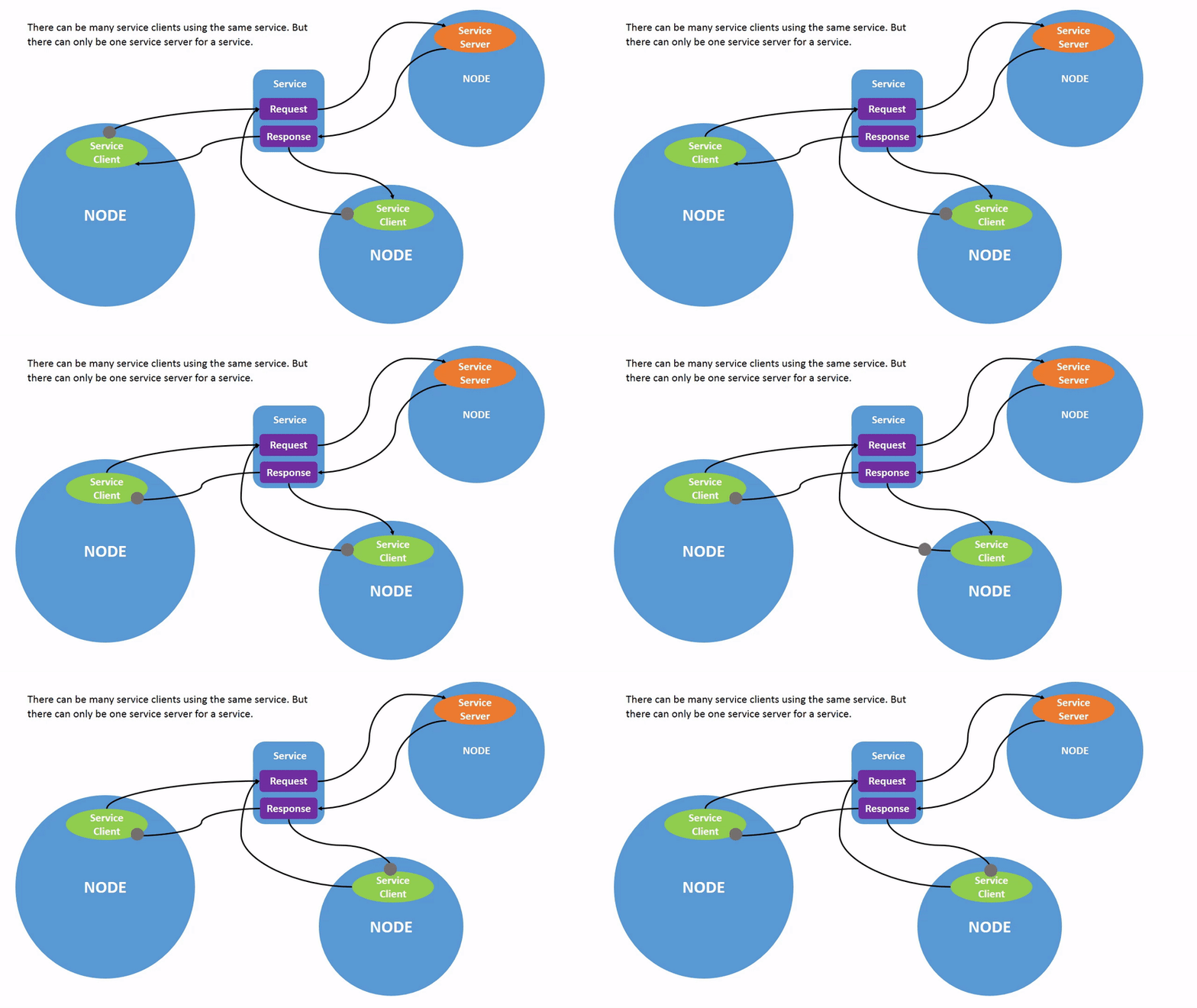
Key aspects
One server per service, but multiple clients can interact with it
Two message types: request and response
Not intended for continuous communication
Typically handles two kinds of requests: computation requests and settings changes
With this foundation, let’s move on to creating our own servers and clients in ROS2:
Create two new Python files in ros2_basics_pkg: server.py and client.py
Make both files executable
Add the following code for the server
import rclpy
from rclpy.node import Node

from example_interfaces.srv import AddTwoInts

class MinimalServer(Node):
    def __init__(self):
        super().__init__('minimal_server')
        self.srv = self.create_service(AddTwoInts, 'add_two_ints', self.add_two_ints_callback)

    def add_two_ints_callback(self, request, response):
        response.sum = request.a + request.b
        self.get_logger().info('Incoming request\na: %d b: %d' % (request.a, request.b))

        return response

def main():
    rclpy.init()
    minimal_server = MinimalServer()
    rclpy.spin(minimal_server)
    minimal_server.destroy_node()
    rclpy.shutdown()

if __name__ == '__main__':
    main()
Question
What are the essential elements of a server?
Add the following code for the client
import rclpy
from rclpy.node import Node

from functools import partial
from example_interfaces.srv import AddTwoInts


class MinimalClient(Node):
    def __init__(self):
        super().__init__("minimal_client")
        self.call_add_two_ints_server(6, 7)

    def call_add_two_ints_server(self, a, b):
        client = self.create_client(AddTwoInts, "add_two_ints")
        while not client.wait_for_service(1.0):
            self.get_logger().warn("Waiting for Server Add Two Ints...")

        request = AddTwoInts.Request()
        request.a = a
        request.b = b

        future = client.call_async(request)
        future.add_done_callback(partial(self.callback_call_add_two_ints, a=a, b=b))

    def callback_call_add_two_ints(self, future, a, b):
        try:
            response = future.result()
            self.get_logger().info(str(a) + " + " + str(b) + " = " + str(response.sum))
        except Exception as e:
            self.get_logger().error("Service call failed %r" % (e,))

def main(args=None):
    rclpy.init(args=args)
    minimal_client = MinimalClient()
    rclpy.spin(minimal_client)
    minimal_client.destroy_node()
    rclpy.shutdown()

if __name__ == "__main__":
    main()
As you can see, this program introduces more complexity compared to previous examples. Let’s break it down step by step:
Overall Structure
The overall structure is similar to the minimal node, but includes additional functionalities to support client-server communication.
Calling the Service
The method
self.call_add_two_ints_server(x, y)is responsible for calling the server. In this example, it is called in the constructor, but in general it can be used anywhere else in the class as needed.
Creating the Client
The
call_add_two_ints_server(self, a, b)method creates a client for theadd_two_intsservice.The method sets up a request by assigning values to
request.aandrequest.b.The service call is made asynchronously with
client.call_async(request). This returns a future object, which will eventually hold the result once the server responds.While waiting for the server response, a callback function is registered using
future.add_done_callback. Thepartialfunction from thefunctoolsmodule is used here to pass additional arguments (aandb) to the callback, ensuring that the response is linked to the original request.
Handling the Response
Once the server responds, the method
callback_call_add_two_ints(self, future, a, b)is executed.The result is accessed using
future.result(), and this value can then be processed.
This structure allows the client to make non-blocking service calls and process the server’s response asynchronously. The use of functools.partial is crucial for tracking which request generated which response.
Note
Keep in mind that a synchronous version of service calls is available in ROS2. However, we are using the asynchronous approach here, which is generally recommended by the ROS community (Synchronous vs. asynchronous service clients).
Build the project
Warning
Have you updated setup.py?
Run both the server and client we have just created
We have just rewritten the add_two_ints example in our own package, so the result should be identical. You can use CLI commands to verify this. Additionally, we have added a client node, allowing you to call the server directly from the program instead of using the ros2 service call command from the terminal.
Question
What happends if the client node starts before the server? Why?
Custom Interfaces
By now, you should understand that topics and services are the core communication tools in ROS2. Both are defined by a name and a type (either msg or srv). The actual content being exchanged is referred to as an interface, representing the data structure of the information (message or service definition). In this final theoretical section, you will learn how to create custom data structures for messages and services, allowing you to define your own interfaces.
The first step is to create a package to store your custom interfaces. This is considered best practice because it keeps all your message and service definitions in one place, helping to avoid dependency issues. It is also important to note that custom interfaces in ROS2 must currently be defined in a C++ package. Let’s walk through how to do this in practice:
Create a new package
cd ~/ros2_basics_ws/src
ros2 pkg create ros2_basics_interfaces --build-type ament_cmake
Remove unnecessary folders
cd ros2_basics_interfaces
rm -rf include/
rm -rf src/
Create new directories
Next, we will create the msg/ and srv/ folders to store our custom message and service definitions:
mkdir msg
mkdir srv
Modify package.xml and CmakeLists.txt
Similar to Python packages, C++ packages also have a package.xml file. Additionally, there is a CMakeLists.txt file, which serves as the C++ equivalent of Python’s setup.py. To properly configure the package for custom interfaces, you need to add the following lines:
In package.xml
Below
<test_depend>ament_lint_common</test_depend>, add:<build_depend>rosidl_default_generators</build_depend> <exec_depend>rosidl_default_runtime</exec_depend> <member_of_group>rosidl_interface_packages</member_of_group>
In CmakeLists.txt
Below
find_package(ament_cmake REQUIRED), add:find_package(rosidl_default_generators REQUIRED) rosidl_generate_interfaces(${PROJECT_NAME} ) ament_export_dependencies(rosidl_default_runtime)Note
The key point here is to make sure the ROS2 system recognizes your custom interfaces. This is achieved by updating the following section:
rosidl_generate_interfaces(${PROJECT_NAME}

)
We will cover this in more detail when the time comes.
Create a custom message
Create a message file indside the msg directory
cd ~/ros2_basics_ws/src/ros2_basics_interfaces/msg
touch CMiEquipmentStatus.msg
Warning
Pay close attention to naming conventions when creating custom interfaces. Names should start with an uppercase letter, and each new word should also begin with an uppercase letter. Do NOT use
-or_in the name. Avoid including “Msg” or “Message” in the name, simply use the .msg extension at the end. The same convention applies to services, but with the .srv extension.Message definition
Define the fields in your message to match the needs of your application. In this example, we will gather status information from a piece of equipment in the clean room at the CMi. In the file CMiEquipmentStatus.msg, add the following fields:
string equipment_id
string equipment_name
string status
float32 temperature
float32 humidity
bool is_operational
Note
You can find a list of the predefined data types available in ROS2 in the official documentation.
Update CMakeLists.txt
As mentionned earlier, we need to include the message file in CMakeLists.txt in order to tell the ROS2 system that it exists. As a comparison, it is similar as adding an entrypoint for a new executable. Here is the update:
rosidl_generate_interfaces(${PROJECT_NAME}
    "msg/CMiEquipmentStatus.msg"
)
Build the package
Now that we have two packages, you can use the following command in order to build just the desired one:
colcon build --packages-select ros2_basics_interfaces
Verify it was properly installed
Once the build is complete, source the install/setup.bash file and verify that the newly created custom message is available and has the correct structure:
source install/setup.bash
ros2 interface show ros2_basics_interfaces/msg/CMiEquipmentStatus
You have successfully created your own message definition, and it can now be used just like any standard ROS2 message in your programs. Do not forget to include the package and message type at the beginning of your files.
Create a custom service
To create a custom service definition, follow a procedure similar to creating a custom message. You will need to add a .srv file to the srv/ folder and respect the request/response structure specific to services, which is as follows:
Define the request message
Add
---to indicate the separation between the request and response messagesDefine the response message
Here is an example of what a file named StudentGrades.srv might look like:
string student_name
uint8[] student_grades
---
bool success
In this example, the service checks whether a student has passed his exams based on his grades. The request includes the student’s name and grades, while the response indicates whether or not the student has passed.
Warning
Unlike entrypoints in setup.py, you must NOT separate the declarations of your interfaces with ,. This is the correct way to do it:
rosidl_generate_interfaces(${PROJECT_NAME}
    "msg/CMiEquipmentStatus.msg"
    "srv/StudentGrades.srv"
)
Note
While developing your own custom interfaces can be useful, keep in mind that there are many common interfaces already available in ROS2 that can meet the needs of your project. You can learn more about these interfaces here.